
Documentation
Everything you need to install, configure and use ADFlowManager.
Getting Started
ADFlowManager is a desktop application for Windows that replaces PowerShell-based Active Directory management workflows with a fast, modern native interface.
Requirements:
- Windows 10 (1809+) or Windows 11
- Active Directory domain connectivity
- Domain user account (admin recommended for full feature access)
- ~100 MB disk space
The .NET 10 Desktop Runtime is bundled in the installer — no separate installation required.
Login & Authentication
On first launch, you will be prompted for your AD credentials:
- Domain — your Active Directory domain name
- Username — your domain account (sAMAccountName)
- Password — your domain password
Remember Me stores credentials securely in the Windows Credential Manager — no plain-text storage.
Auto-login is available for trusted environments and can be enabled in Settings > General.
User Management
- •Create users with full AD property support across 5 tabs (Identity, Contact, Organization, Groups, Options)
- •Auto-generate SamAccountName, UserPrincipalName, and email from first/last name using the configured format
- •Detect duplicate logins in real time and auto-increment (jane.doe → jane.doe1)
- •Real-time validation of every field (LDAP injection, 20-char max, password compliance)
- •Generate strong passwords automatically (clipboard copy, wiped after 60 s)
- •Assign AD groups by checking a searchable list
- •Target the correct OU from a live dropdown of domain Organizational Units
- •Configure account options (expiration, must-change-at-first-login, disabled account)
User Creation Flow
foreach group → FindByIdentity() → Members.Add(user) → group.Save()
AD Attributes Written
Note: LDAP Write #2 (DirectoryEntry.CommitChanges()) is a separate operation. A failure on this pass is logged as Warning — the user is already created in AD at that point.
Create a new IT team member:
- Navigate to Create User
- Enter the first and last name — the login, UPN, and email are generated automatically
- Review (and adjust if needed) the SamAccountName in the Identity tab
- Fill in the Contact tab (phone, mobile) and Organization tab (job title, department)
- In the Groups tab, search and check the AD groups to assign
- In the Options tab, set the password (or click Generate) and account options
- Select the target OU from the dropdown
- Click Create — the user is created in AD with all groups assigned
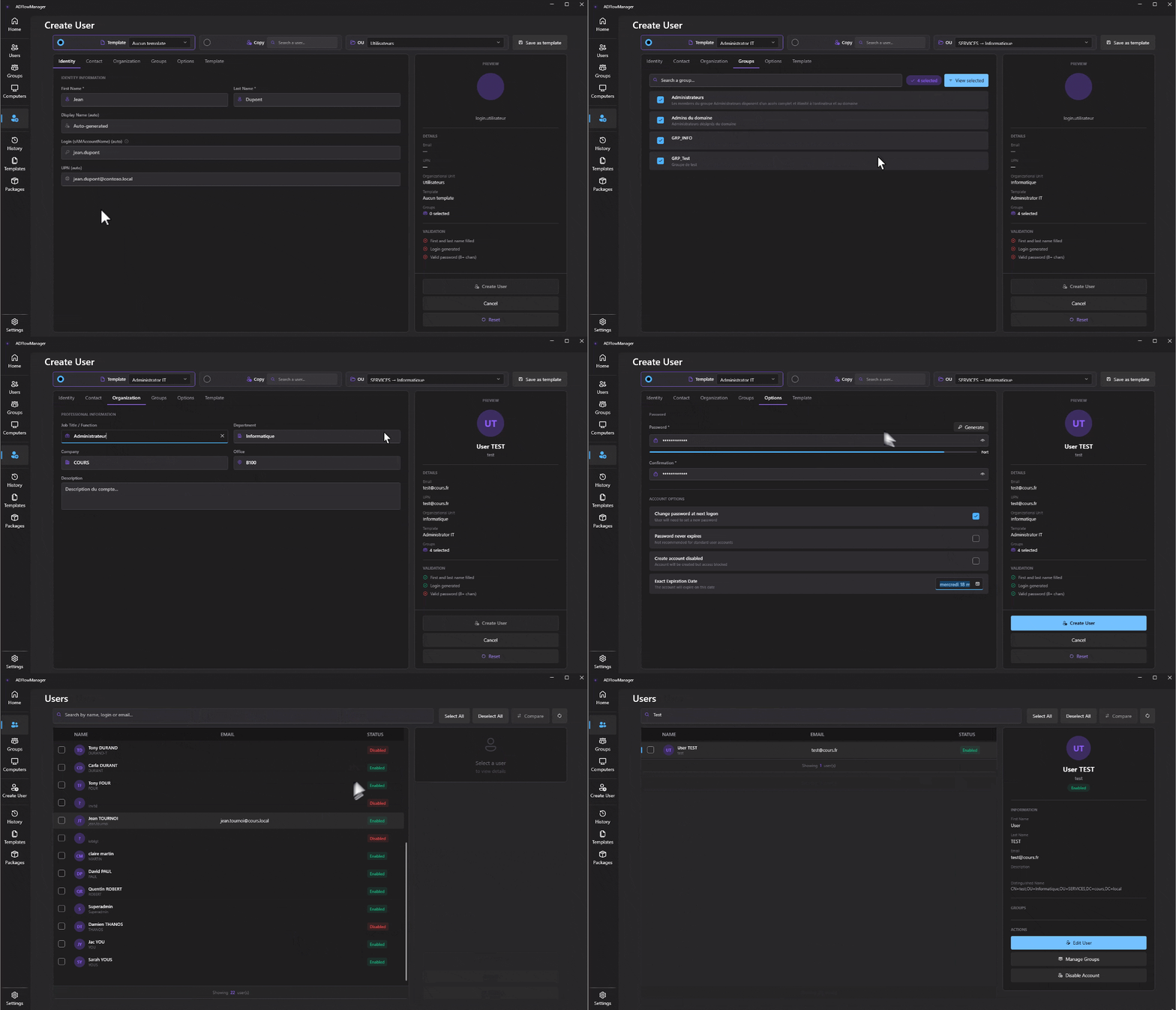
Tutorial — Create a user from a template
Group Management
The Groups page allows you to browse and manage all AD groups.
Browsing groups:
Use the search bar to filter by name. Groups load on the left panel.
Managing members:
Click a group to open its detail view. From there you can:
- Add / remove members individually
- Bulk add / remove (paste a list of usernames)
Creating a group:
Click New Group and choose:
- Name and description
- Type: Security or Distribution
- Scope: Domain Local, Global or Universal
- Target OU
Performance tip: If your AD has many groups, enable "Do not load groups on startup" in Settings > Active Directory to improve startup time.
Templates
- •Create reusable templates capturing: job title, department, company, office, target OU, AD groups, account options
- •Apply a template during user creation — form pre-fills instantly
- •Store templates locally (AppData\ADFlowManager\Templates\) or on a network share for the whole team
- •Auto-fallback to local storage if the network share is unreachable
- •Copy from an existing user — extract an AD user's organizational profile as a starting point
- •Save the current form directly as a new template
- •Import / Export templates as JSON files
- •Manage templates from the dedicated page (create, delete, export)
Template System Flow
GetFiles("*.json") → Deserialize → Sort alphabetically → Populate dropdown
IMPORT
OpenFileDialog → Deserialize → New GUID → Save
EXPORT
Select template → SaveFileDialog → JSON serialization
COPY FROM USER
Search AD user → Extract org profile + OU + groups
Template Structure (JSON)
{
  "id":          "a1b2c3d4-e5f6-...",
  "name":        "IT Intern",
  "description": "Standard profile for IT department interns",
  "createdBy":   "admin.doe",
  "createdAt":   "2025-09-01T08:30:00",
  "modifiedAt":  "2025-09-01T08:30:00",
  "jobTitle":    "Intern",
  "department":  "IT",
  "company":     "ACME Corp",
  "office":      "Paris",
  "defaultOU":   "OU=Interns,OU=IT,DC=acme,DC=local",
  "groups":      ["Domain Users", "VPN-Interns", "Printers-Paris"],
  "mustChangePasswordAtLogon": true,
  "isEnabled":   true,
  "expirationDays": 90
}
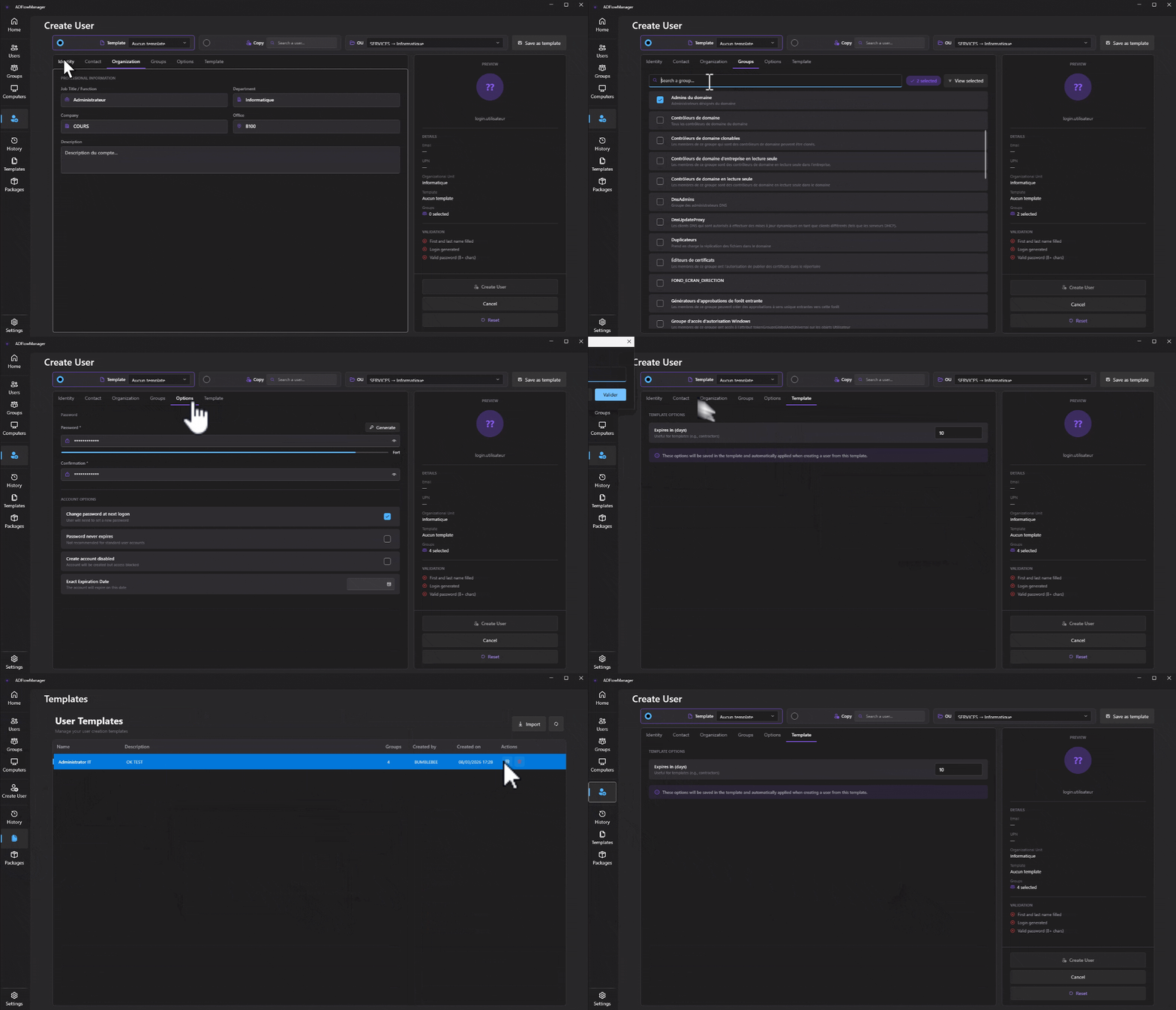
Set up an "IT Intern" template:
- Navigate to Templates and click + New Template
- Fill in the name, job title (Intern), department (IT), and target OU
- Add the AD groups to assign automatically
- Set the expiration (e.g. 90 days) and account options
- Save — the template is available to the whole team if a network share is configured
Use the template to create a user:
- Navigate to Create User
- Select IT Intern from the template dropdown
- Organization fields, groups, and OU pre-fill instantly
- Enter only the first and last name — the login is generated automatically
- Set the password and click Create
Tutorial — Create a template for domain admins
Audit & History
Every AD operation performed through ADFlowManager is recorded in an audit log.
Accessing the audit log:
Navigate to History in the main menu.
Filtering:
- Date range picker
- Operator (which user performed the action)
- Action type (create, edit, disable, enable, password reset, group change)
- Target entity (user or group name)
Exporting:
Click Export CSV to download the filtered results. Use for compliance reporting.
Network audit database:
Set a shared SQLite path in Settings > Audit. Multiple operators will write to the same database, giving team-wide visibility.
Retention policy:
Configure automatic purge of old logs in Settings > Audit (e.g. keep last 90 days).
Settings
Settings are organised across 7 tabs:
Security & Privacy
ADFlowManager is designed with a privacy-first approach:
- •Zero telemetry — no data leaves your infrastructure
- •Windows Credential Manager — credentials are stored securely by the OS
- •Memory protection — credentials in session memory only; no long-term plain-text storage
- •Clipboard auto-clear — generated passwords are cleared from clipboard after 60 seconds
- •LDAP injection validation — all user input is sanitised before AD queries
- •Path traversal blocking — file paths are validated
- •Secure logging — sensitive information only appears at DEBUG level
Package Deployment
Create, sign, and deploy installation packages to domain computers — entirely via native Windows protocols. No agent, no WinRM required.
- •Create packages (.exe, .msi, .ps1) with full metadata: name, version, category, tags
- •Auto-detect installer metadata — drop any .exe or .msi: name, version, publisher, and silent install arguments are pre-filled automatically
- •Deploy to one or more domain computers simultaneously
- •Sign packages with an ECDSA P-256 key to guarantee integrity before every deployment
- •Automatic SHA-256 hash verification at each deployment
- •Configure pre/post-install steps: process check, file verification, cleanup
- •Import / Export as JSON for team sharing
- •Store locally or on a network share
Auto-Detection of Installer Metadata:
When you add an installer, ADFlowManager reads the embedded metadata to auto-fill the package form.
- •.exe — reads FileDescription, ProductName, ProductVersion, CompanyName from the PE version resource. Known vendor signatures are matched to suggest the appropriate silent switch:
/S,/silent,--silent,/quiet,/norestart. - •.msi — queries the MSI property table: ProductName, ProductVersion, Manufacturer. Standard silent arguments (
/qn /norestart) are pre-filled automatically.
Copy installer
via \\PC\admin$
Receives installer file
Create service
temporary SCM entry
Windows service created
Progress reported
3Runs as LOCAL SYSTEM
Monitor progress
polling + log reading
Status + log polling
Cleanup
service + files removed
Service & files deleted
Security:The installer runs as LOCAL SYSTEM on the target machine. No admin password is transmitted to the remote host. Authentication relies exclusively on the Kerberos rights of the connected domain account.
Package Signing (ECDSA P-256):
- •Private key stored in the Windows Certificate Store (
CurrentUser\\My— CN: ADFlowManager Package Signing) - •Signature covers: installer hash · name · version · arguments · type · path · steps
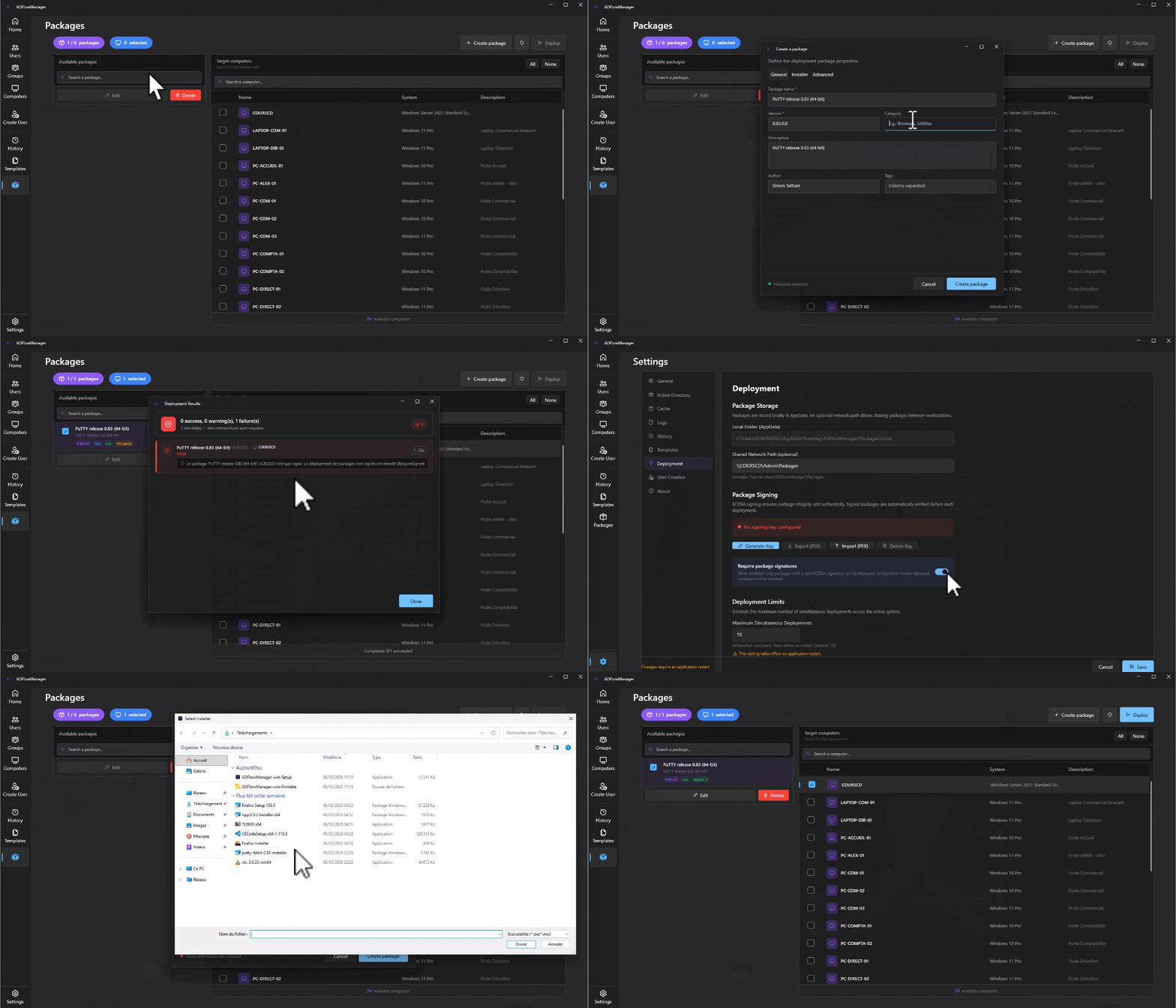
- •A signed package displays a Signed ✓ badge — any modification invalidates the signature
- •Editing a signed package requires holding the corresponding private key
- •Possible statuses: Signed ✓ · Invalid signature · Unsigned
Usage Example — Deploy Google Chrome:
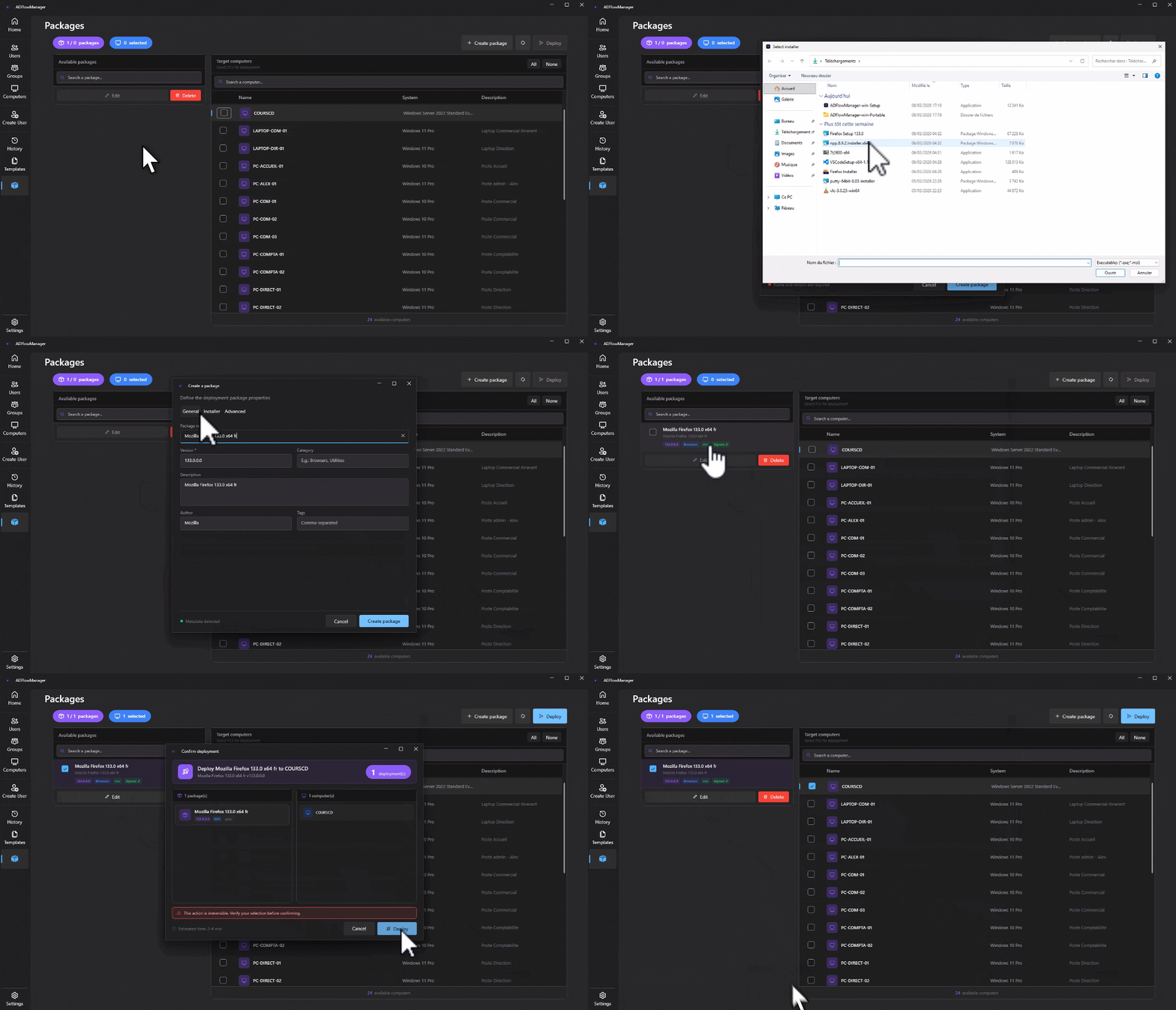
- Navigate to Package Deployment and click + New Package
- Fill in name, version, category
- In the Installer tab, drop the .msi — name, version and silent arguments are auto-populated
- (Optional) Click Sign Package to digitally sign it
- In the Computers list, check the target machines
- Click Deploy and confirm — runs in parallel across all targets
- Monitor real-time progress; view per-machine results when complete
Tutorial — Create and deploy a package on a PC
Tutorial — Use case: deploying an unsigned package
Known Issues (Beta)
- Language change requires application restart
- Some UI labels may not be fully translated (~95% FR/EN coverage)
- Network templates require write permissions on the shared folder
- First cache load may take time depending on AD size
- 7 NU1701 warnings (CredentialManagement legacy package — functional)
- ~200 CA1416 warnings (Windows API calls — expected for Windows-only app)
AI Usage
This site and its documentation were built with AI assistance as a productivity tool. The structure, the bilingual content, and this documentation were all drafted and refined with AI help. Every technical statement has been reviewed and reflects the actual application behaviour.
ADFlowManager itself has a different story. Late 2022, I built an internal tool for my company to accelerate all IT workflows: user management, automated account creation in a hybrid environment, Office 365 mailbox and license management, Intune, SharePoint, and more. ADFlowManager is a complete open source rewrite of that same idea, built from scratch on better foundations. Same vision, cleaner architecture.
The software architecture, business logic, and every decision behind it are mine. AI helped with scaffolding, code generation, and debugging. Every line that matters was reviewed, understood, and adapted by me before it made it in.
The goal isn't to ship features as fast as possible, but to ship them well. I take the time to go through all the code carefully before anything is merged. Progress can be slow at times, but quality comes first.
I'm open to feature requests and code audits to improve the software. My goal is a good balance between security and everyday usability, not a paranoid lockdown. A solid and practical compromise that works for real-world workflows.
If you're not comfortable with AI being part of this project, I completely understand. It's okay if that means ADFlowManager isn't for you. Feel free to reach out and discuss what doesn't sit right with you.
For the full context on this project and how AI was used, see the Contribute page.